![GTR Logo-01-n-text-white-2.png]](https://knowledgebase.getthereferral.com/hs-fs/hubfs/GTR%20Logo-01-n-text-white-2.png?height=40&name=GTR%20Logo-01-n-text-white-2.png)
Find and Customize your Email Templates
Location: Email Marketing > Email Template
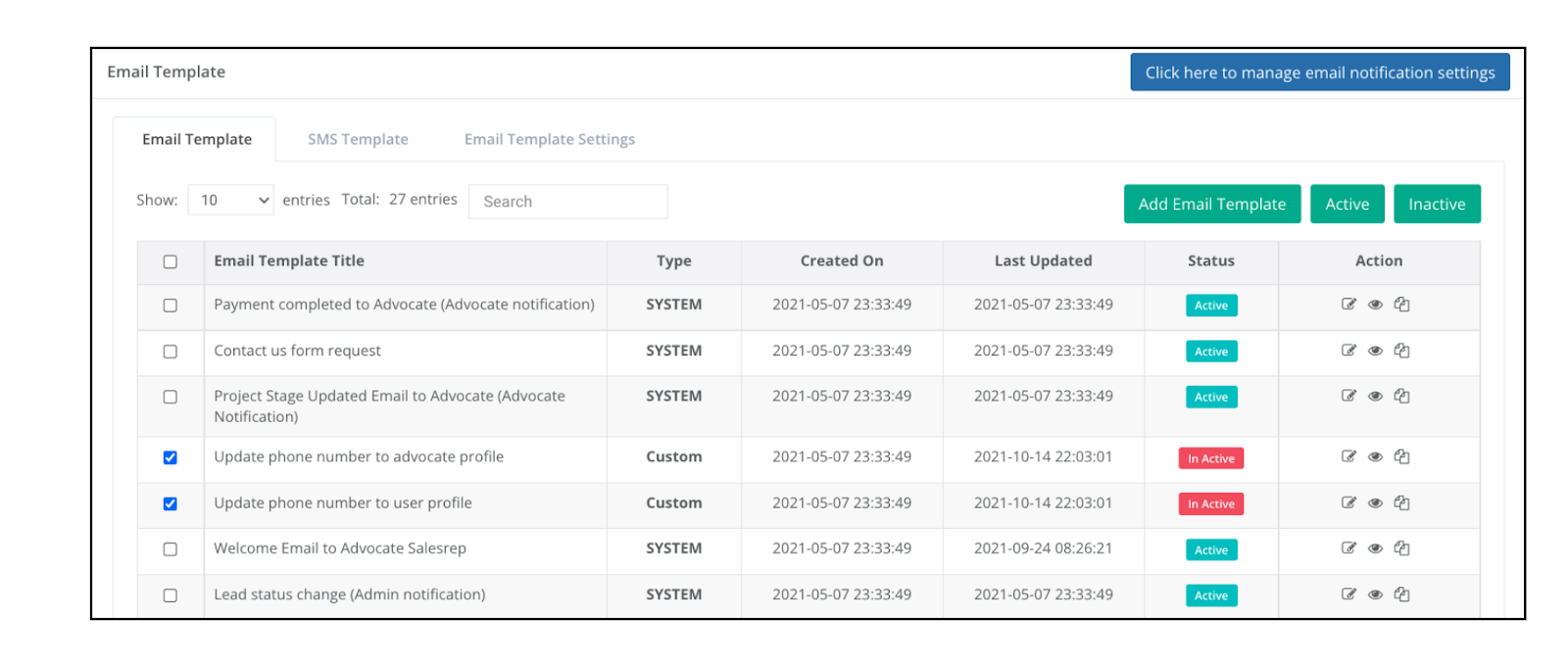
Email management enables you to add and edit email templates that you send to Advocates emails
Email Template Header Rows 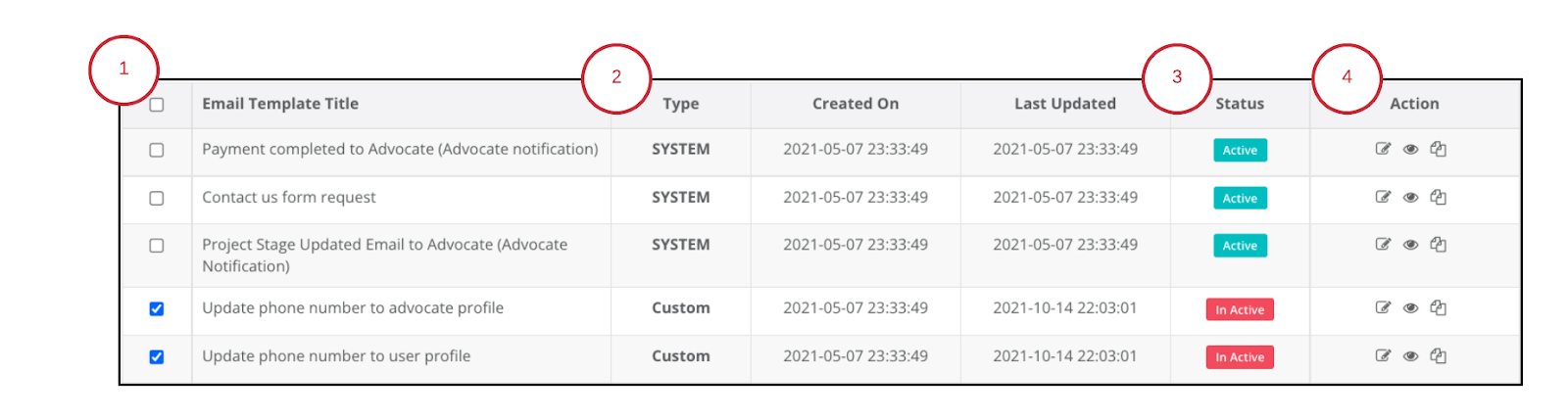
- Checkbox: In order to select an email template, the checkbox must be selected.
- Type: There are two types of emails; System and Custom
- System: Default templates created by GTR
- The original System template will still be available
- Can be changed or edited if you make a copy
- If you make a copy, it will be labeled CUSTOM
- Custom: Templates that have been copied from a System email
- Status: There are two status’
an email can have; active and inactive
- Active: Emails templates that will be active for emails
- InActive: Emails that aren’t deleted but aren’t active for emails
- Company Admins can just reactivate the email when needed, instead of deleting it
- Pro Tip: It’s a great idea to have a list of inactive emails for promotional emails that only occur periodically
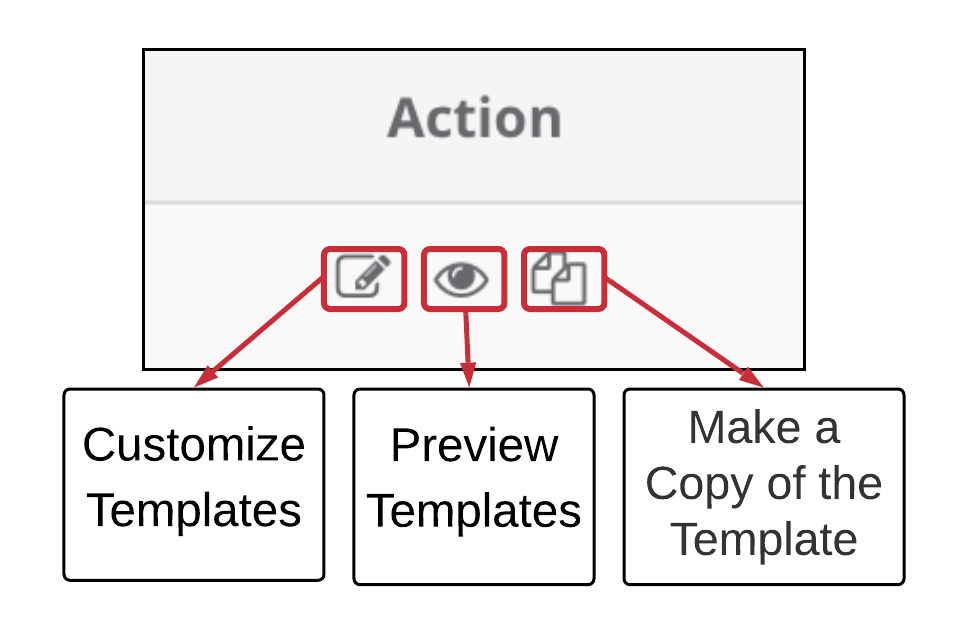
- Action: There are 3 options under the action tab
- Edit, Preview, Make a Copy